


I ❤️ Obsidian Bases
On the 18th August, I happened to see a post in the ObsidianMD subreddit from Kepano announcing that something called “Bases” was now available for general release. Now, because I stopped using Mastodon regularly about a year ago (circa. US general election), and I only use Reddit occasionally (it’s bad for my brain), the whole Bases thing had passed me by, meaning this was an incredible surprise!
It also happened a few days before my brief few days off from work, which was good because I had time to play, and bad because it meant I did nothing else!
I’ve talked a little bit about Obsidian before, and the ways I’ve been using it. For those that don’t know, Obsidian is a notes application. I love it because it stores notes in markdown format, which is essentially just a text file, and as such, you can open it with any simple text app (Notepad, etc) if you need to. That means if Obsidian disappeared, or I didn’t want to use it any more, my notes are still readable and searchable. They are also all stored locally in a folder (or folders) on your device. I wrote a bit about why I chose Obsidian a few years ago.
It is also super flexible! And it has an amazing community of users who happily share tips and create plugins to do all kinds of extra useful things you might want.
So what is Bases, and why am I so excited about it?
One thing I have come to understand about myself over my 37 years is that I fucking love a database.
It’s one of the things I love about my job, and I will spend hours in my free time messing about with databases in whatever format. This includes spreadsheets (my cycle tracker), Goodreads, Calibre, I set up our home library in Library Thing, and even this website, I think of as a database!
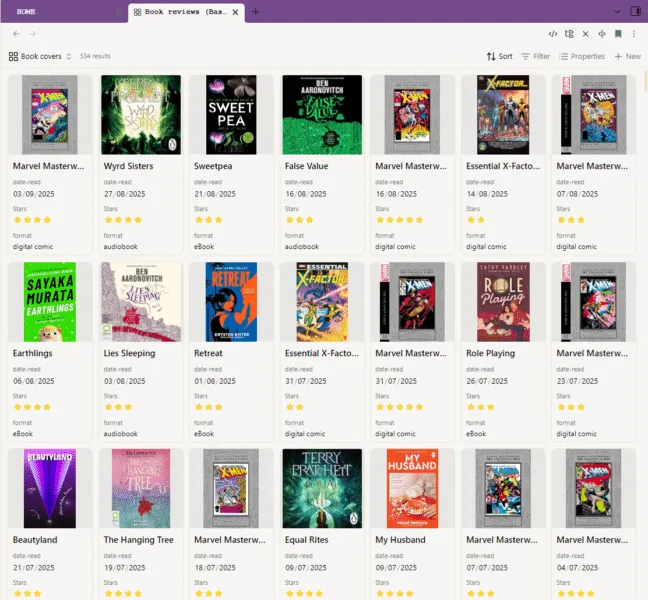
Bases allow Obsidian to function like a database. Data-BASE, right? Now it doesn’t turn it into a database; it just adds functionality so you can query and manage your notes in a more database-like way. Bases uses Properties (aka YAML), entered at the top of your note, like database fields. If you put data in properties, you can display it and search it using Bases, making it easier than ever to create lists of notes. For example, to get a list of all the books I read in 2024 and then be able to sort and filter them by date read or format.
You can also then edit the data in properties in the Bases table view, which is amazing for quickly updating things! And you can copy the data in a Bases table view to clip clipboard or export as a CSV. Very cool!
There has been a community plugin called Dataview around for a long time, and in the past, this is how I’d been able to query notes to do lots of useful things to build displayable connections (e.g, in a note I might have for an author, to list all my reviews for books I’ve read by them). Bases replaces and improves some of those functions, but it can’t (yet) do everything that Dataview can, so you will see I’m still using both.
A better way to track my reading
I’m going to preface this with an acknowledgement that this is not revolutionary for most intelligent people!
Most of this is fucking obvious, and no, I don’t know why I haven’t been doing it this way the whole time. It’s just not how my brain works, apparently. I have to go around the houses sometimes to realise the simplest solution!
So, while I bet most of you already do something like this, I’m excited I finally figured it out, while also frustrated with myself for not doing so sooner.
Anyway, this is what I was doing to track my reading:
- Mark the book as currently reading on Goodreads.
- Read the book. All thoughts are kept in my head.
- Finish the book. Write a review on this blog from memory (and sometimes using Kindle notes and highlights).
- Paste the review into Goodreads. (I also copy the HTML from Goodreads and paste that into LibraryThing if it is a book I own… and if I remember to do it.)
- Use the Booksidian plugin to sync reviews into Obsidian from Goodreads (using a special tag/shelf in Goodreads), and do some manual edits to record extra data I want.
- Use Dataview to build an annual review dashboard to pull up various interesting statistics and patterns in my reading for the last year. (This is how I did it for last year’s reading review).
The problem with this approach is that it relies entirely on my notoriously shit memory when it comes to recording my thoughts after I’ve finished a book. And worse, if I never get around to writing up a proper review, then those thoughts are lost forever, which is annoying when it turns out to be something I want to reference later. Now I’m engaging more with things like Top Ten Tuesday this is something that is coming up a lot!
Why haven’t I been logging my book thoughts in this amazing notes app already? Because I’m lazy and it felt like an effort to set it up in a useful way, while I was busy actually reading the book. I have, by the way, tried writing pen and paper reading logs in the past (in my Bullet Journal days), and I just don’t use them!
This is my new workflow
- Mark the book as currently reading on Goodreads.
- Use the Booksidian plugin to sync it into Goodreads, based on my currently-reading shelf. Add any additional properties I want to record.
- Read the book, and as I go, write any thoughts into a Reading Log section of the book’s note. (I have Obsidian Sync, so I can do this on my phone, iPad or PC).
- Finish the book. Use notes to write a better review for the blog.
- Paste review into Obsidian, Goodreads, etc.
- Use a combination of Dateview and Bases to build a dashboard of progress for the current year (and previous years).
- ALSO, use Bases to track Top Ten Tuesday lists so I can see connections I’ve made!
Community plugins I’m using
- Booksidian is a community plugin that uses Goodreads RSS feeds to pull in some data. It can’t get everything, but it’ll get the most useful information.
- Dataview, as mentioned above.
Using Booksidian
I found Booksidian is pretty simple to use, but it did take some trial and error to get what I wanted in the correct formatting to make valid properties.
You essentially point it at a Goodreads shelf – e.g. a custom one or something like currently-reading. You can then build a template for what you want your Obisidian note to look like. I’d recommend doing this in a note and keeping it saved, and then pasting it into the box in the plugin settings. That means you have a backup, as well as it just being easier to write that way.
One annoying thing is that I found data in Goodreads shelves won’t come through nicely as a List type property or as property tags. It does if you use the plugin’s Frontmatter settings to pull it in, but that doesn’t have any custom property options in it, and I want to add my own data as I sync in for things like note type and placeholders I want prompting on. I resolved to just let the Goodreads shelf data go in as a text block to a gr-shelves property so I can search it if I want and manually add anything from that. To be honest, my Goodreads Shelf tags are pretty messy anyway, so this is not a bad thing!
It might work if you use the Templater plugin to set up a properties-only template with the extra stuff you want to add and trigger that when you edit a note once it’s in the vault, as a workaround.
I decided to have my currently reading books go into a Currently Reading folder, so I have them contained and easy to find in the file structure. It is just my preference to use folders to organise notes! It also makes it a lot simpler to then build a Bases filter based on that folder.
I then modified my vault homepage (I use the Homepage plugin, you could just use a pinned note) with a neat little section that uses a Bases code block to display those books for easy access!
It is really easy to show book covers now with the card view option. I love the visual appeal, and it makes it easier to scroll to the book’s note quickly. This was possible before with Dataview, but more of a faff to get to work! My covers are being displayed through the Goodreads cover image URL, so sometimes they do disappear or change. Booksidian can automatically download the covers if that’s what you want, but that seemed unnecessary for me.
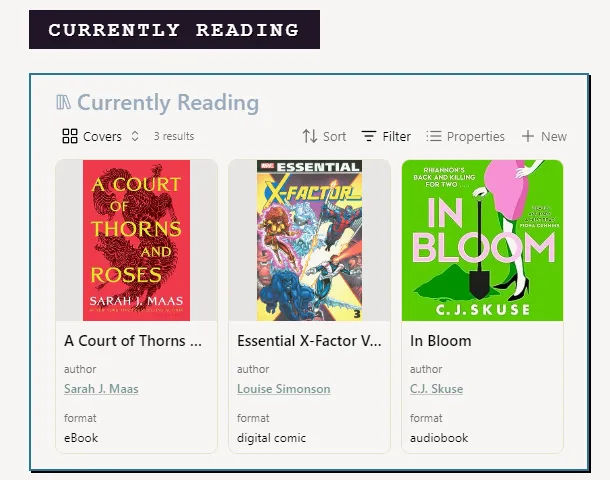
I am a little mortified that I happen to be reading A Court of Thorns and Roses right now, and so it’s getting “immortalised” in this blog post. But it does mean using it as a pilot book for this new workflow and testing using a reading log. I am keeping a great record of all the things I hate about it! (I am not enjoying reading this book (Romantasy is not my thing); I’m only reading it to discuss with my Husband, who just read it for a personal project).
With this on my home page, I can just open my app on my phone, click on the book, and then I’m in and can quickly jot down my thoughts. The tricky thing is going to be building that habit or picking up my phone when I have the thought!
Book note template
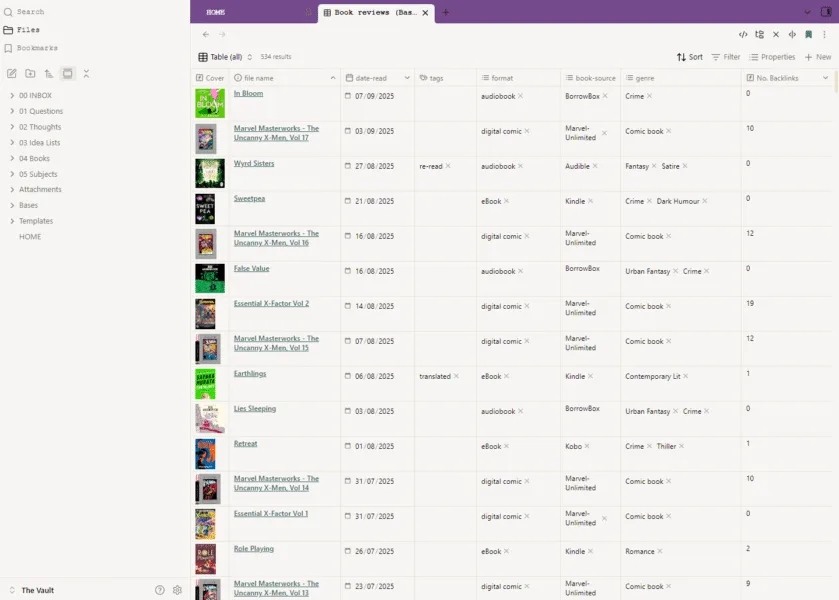
My book note template has gotten pretty large with properties in the hope I can make the most of Bases. That means it’s hard to take a clear screenshot of. I basically have a property for all the things I want to make note of that I might want to mention in a review, or refer back to see themes or patterns in what I am reading and how I am responding to it.
Aside from the obvious, like title, author, series etc,. these are
- genre
- themes
- character names (I always forget them)
- tone (e.g. satire, young adult, irreverent)
- setting
- narrator and duration, if it is an audiobook (Goodreads does not have this!)
- format (e.g. eBook, audio, etc)
- book source, if I got it from Kindle, Kobo, Audible, library, etc
- If it is a re-read, when I originally read it, and a bried note on why I re-read it
The Bases table view allows you to edit properties without having to open each individual note, so it’s easy to scan down and add anything that might be missing, if I feel like it.
In the body of my book’s note, I also have a section for the summary blurb from Goodreads. Sometimes these are crap, but it’s useful to have to remind me about the book.
This is followed by a Reading Log section, which is just a super basic bulleted list, and following that, I’ll paste in the review from my blog.
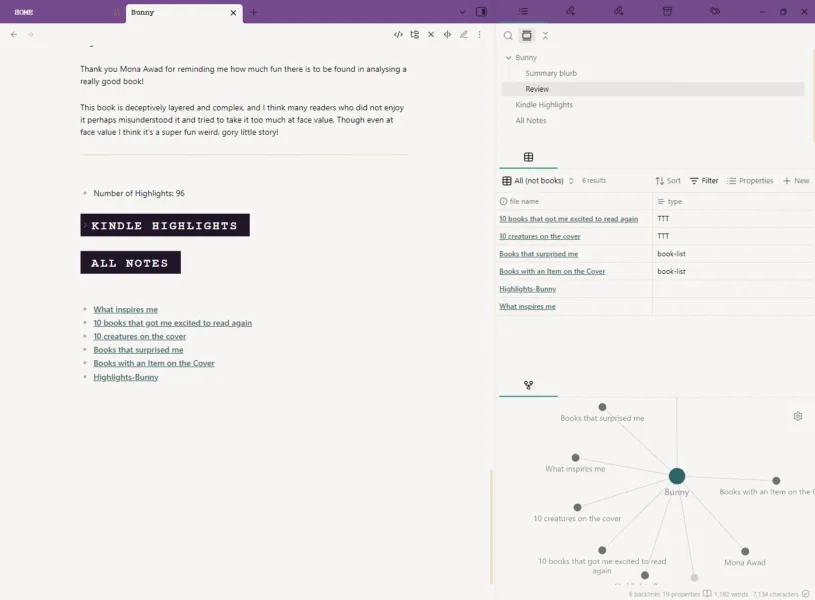
And then a section at the bottom where I embed my multi-purpose bases to show any other notes that are linked to this one. This could be Kindle Highlights – these I add into Obsidian using the Kindle Highlights plugin from my clippings file (now I side-load my Kindle with ePubs!) – or things like notes for Top Ten Tuesday lists. To do that, all you need in the filter is: file.hasLink(this).
There are other ways to do this in Obsidian. You can display links between notes in a side pane or use the graph view, but I do a lot on mobile, where you can’t see any of that, so I like to build it into the main body of my notes.
Organising thoughts and connections
I am hoping that all this will help me be more organised for writing blog posts, especially Top Ten Tuesday. I actually made a Base of TTT prompts (as far as Jana has them available) so I can see them in a list and mark them off as done or to-do, so I don’t have to go to her blog every time to see what is coming up next! It also means I can start my thoughts off in the note and create links to the Books I’m thinking of. Then, when I’m looking at a Book in my notes, I can see where I’ve referenced it.
Actually, keeping a reading log should also make me a better reader and reviewer, by helping me to see more clearly the things that do and do not resonate in the books that I read, which is always my goal in writing book reviews!
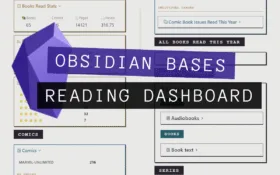
Next, I’ll share how I built my reading dashboard in Obsidian. I am very happy with it, I can’t stop looking at it! And, the slightly crazy workflow I have now to track my comic book reading, issue by issue.

Now the geek in me who also likes databases and used to work with them, is tempted my obsidian and bases after this post. But the part of me that is trying to disconnect more is happy with my paper version, especially as I get to play with my large fountain pen ink collection and eventually I hope to start adding in some simple watercolour. Plus, there’s something so satisfying about flicking through pages of books covers organised in series/authors that I am wanting to prioritise.
It is tempting though 🙂
The arty/creative part of me is also always still tempted by pretty paper notebooks! I also have a lot of pens, paints, and washi tapes from my Bujo days. I miss writing with my favourite Parker pen sometimes (I’ve had that pen since I was 15 and did all my exams with it!)
My Bujo years were also the worst of my mental health years, and I think the slowness of that hobby, and being able to feel the book in my hands as say, did help me at that time. As did learning to be OK with mistakes! At some point though I just dropped off keeping up with it.
Sometimes I wish I was the type of person that could keep nice paper journals!
A consequence of getting obsessed with Obsidian (again) is I have spent far too much time staring at screens in the last few weeks and that isn’t good for me! … I made myself stop fiddling with it this weekend and do other things as well. I finally finished an embroidery!
So yes, if your goal is disconnecting more, definitely beware the Obsidian rabbit hole!
If you want to dip into journal again, why not start a craft one? You could keep notes about patterns you try or projects you make. And because, unlike a bujo, there is no need to pick it up every day, or even with every project, it might work for you.
Yes, it does sound like it could be a rabbit hole to fall down
I have thought about that actually! I’ve been tossing around the idea of doing something with Obsidian, but a “real” project book for that hobby would feel nice to flip through. I also have a fabric “stitch journal” I got for Christmas a couple of years ago that I need to do something with!
Thanks for sharing this. I’ve been slowly dipping my toes back into tracking my reading (I started the year not wanting to track anything in a performative manner), and I started using Obsidian heavily this year. Question though – you mentioned Kindle Highlights…is that baked into Goodreads or are you importing to Obsidian manually?
Hi Steve! Kindle Highlights is another community plugin. You can either do an online sync with your Amazon account or do it from the clippings file stored on the device. I now do the latter because I stopped buying Amazon eBooks and now sideload ePubs I get from Kobo. It’s not perfect, and it’s very annoying that you can end up with duplicates – I assume that is if Amazon decided to change the book on their website and mess with the title, but it’s the best method I have!
Currently it buggy, and it doesn’t work very well with the bases properties because it apparently adds it’s YAML that has no configuration. I found I had to manually fix some of it. I also think it sometimes misses highlights from the myclippings.txt. But it’s better than nothing!
The plugin was last updated 2 years ago so I don’t know if it’s getting fixed any time soon.
I link my highlights automatically to my book notes based on the title, so I make the title a link.
Okay, interesting! I have a Kobo Clara HD, I would bet there’s a plugin related to that somewhere. Currently I export my highlights and manually paste them that way 😉
I’m definitely getting a Kobo next, I keep eyeing them up but my Paperwhite is only a couple years old and completely fine!
I have been thinking manually pasting might be the way forward since the plugin causes headaches sometimes!